FIELD NOTES / START HERE
How to Play Frickbears 3 Online for Free (No Download Required)
Want to play without installing a game? Open the Frickbears 3 player on this site, press Play, wait for the browser resources to load, then use Space to enter the menu. This guide covers the exact first steps, controls, and common fixes.
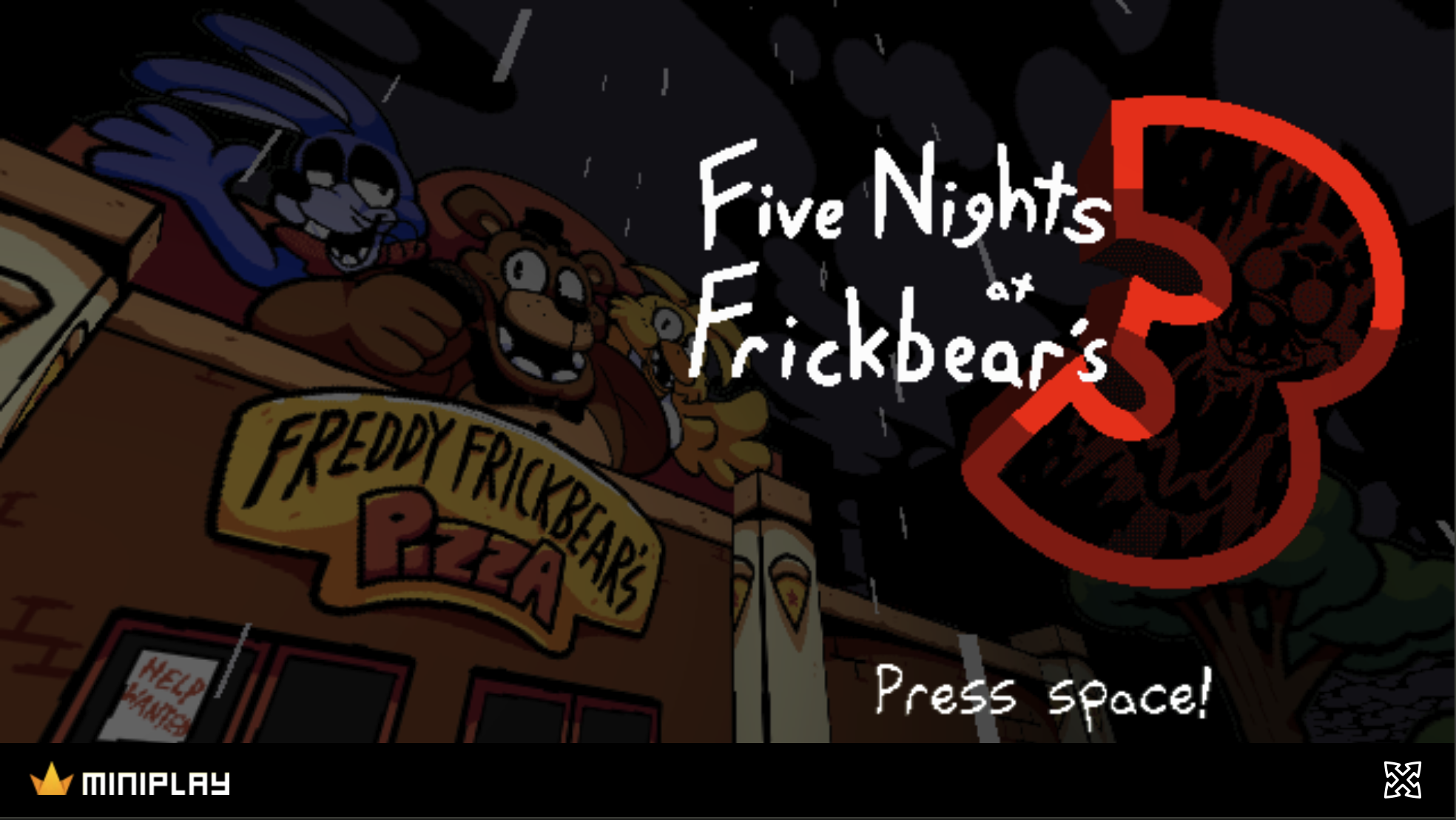
Play Frickbears 3 online in five steps
You can use the browser edition on frickbears.app without installing a Windows program. It is free to start. The browser must still download the game's resources, so "no download required" means no installer or manual game-file download, not zero data transfer.
- Open the Frickbears 3 play page. The game player is at the top. You do not have to find a separate app or an executable file.
- Click "Play Frickbears 3." This starts the game-resource load in the same player area. The first visit may take longer than a return visit, especially on a slow connection. Leave the page open while it is loading.
- Give the game keyboard focus. When the game appears, click inside its canvas, read the opening warning, and press Space. Press Space again at the title screen to open the menu.
- Choose New Game. In the menus, use W and S to move between choices and Space to confirm. For a first attempt, the game labels Jeremy as the Easy guard.
- Play through the night. A regular night begins at midnight. Keep an eye on the clock, Power, and Temperature, and learn how to respond to each animatronic. The immediate goal is to survive until 6 AM.
The game contains flashing lights, loud sounds, and jump scares. Set a comfortable volume before you start.
Keyboard and mouse controls for your first night
These controls were checked in the browser build showing version 1.1.4 on November 16, 2026. Controls may differ if you change the in-game bindings.
In the menus:
- W / S — move through options.
- Space — confirm or continue past an opening screen.
- Esc — go back.
In the office:
- S — raise or lower the monitor.
- W — use the mask.
- A / D — control the left and right doors.
- Z / X — flashlight and fan, respectively.
- Mouse — choose visible monitor tabs, cameras, and other on-screen controls.
- Esc — open the in-game pause menu.
The office monitor includes Cameras, Vents, Shop, and Games tabs. Don't assume the mask, door, or flashlight stops every enemy; different threats demand different responses. The pause menu's Review Animatronics option is a useful place to learn what is active.
If the controls do not match your game, check Options → Remap Controls in the game's menus. The same key can have a different job in a menu and during a night.
What to do if the game will not start
The loading screen takes a long time
Under Loading game files…, watch the Images or Audio file count. Keep the page open while the count is moving. If the player reports that the download stopped making progress, check your connection and refresh the page once to retry.
Space, W, or S does nothing
First click inside the game rather than on the webpage around it, then press the key again. If you used fullscreen, try returning to the normal window and clicking the game canvas. If input still behaves differently than described, review the game's key bindings under Options → Remap Controls.
You see a blank player or a resource error
If the player is still blank after a retry, try a current desktop browser with extensions that block page scripts or downloads turned off for this site. If the problem persists, use the contact page. Include your device and browser, the last Images or Audio count you saw, and any exact error message.
The sound is missing
Check the tab's mute state, your device output, and any in-game sound settings. Sound and visual warnings are part of the experience; lower the volume if the effects are uncomfortable.
Is Frickbears 3 free, and is this the official version?
The browser edition offered here is free to start and does not require you to install the Windows game. It runs supplied HTML5 game resources in the page's canvas. The site is an independent fan play page, not the developer's official site.
There is an important version difference: the browser build checked here displayed 1.1.4. That does not mean it includes every update or expansion available in the developer's downloadable release. For the official release and current version notes, go to SpookyRick's Frickbears 3 page on Game Jolt.
Do not assume that saves or progress carry between this browser edition, another website, and the downloadable game. If you specifically need the newest release, use the creator's listing.
Can you play Frickbears 3 online on a phone?
The website can be read on a phone, but this browser build is designed around keyboard and mouse input. This site does not supply a touch-control layer or promise mobile gameplay. For the controls described above, a desktop or laptop computer is the safer choice.
The game is also not the same as an official Android or iOS app. Treat any mobile-port claim separately from this site's browser player.
A useful plan for your first attempt
Start with the Easy guard, learn the monitor before attempting complex strategies, and watch your Power and Temperature displays. If an enemy repeatedly defeats you, pause and use Review Animatronics instead of relying on one defensive move for everything.
You do not need a series recap before trying this entry: the creator describes the third game's story as self-contained. The practical first step is simpler—open the player, click Play, and follow the prompts on the screen.
Guide scope: firsthand browser controls and the displayed version were checked November 16, 2026. Game rights and original game credit belong to their respective owners; the official creator listing is linked above.
THE NIGHT SHIFT IS WAITING
Ready to try it?
Open the player, allow the first load to finish, and put this guide to work.
Play Frickbears 3 free